In online business, selling of physical products to customers should have flexible and scalable shipping policies. Magento is a friendly system for business needs including shipment rates.
The following steps describe how to setup shipping rates in Magento −
Step (1) − Login to your Magento Admin Panel.
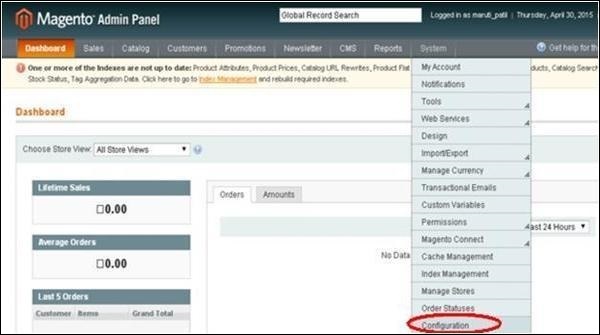
Step (2) − Go to the System menu and click on the Configuration option.
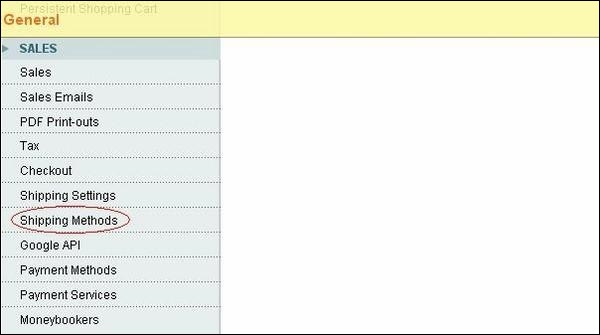
Step (3) − On the left side of the navigation bar, click on the Shipping Methods under Sales section.
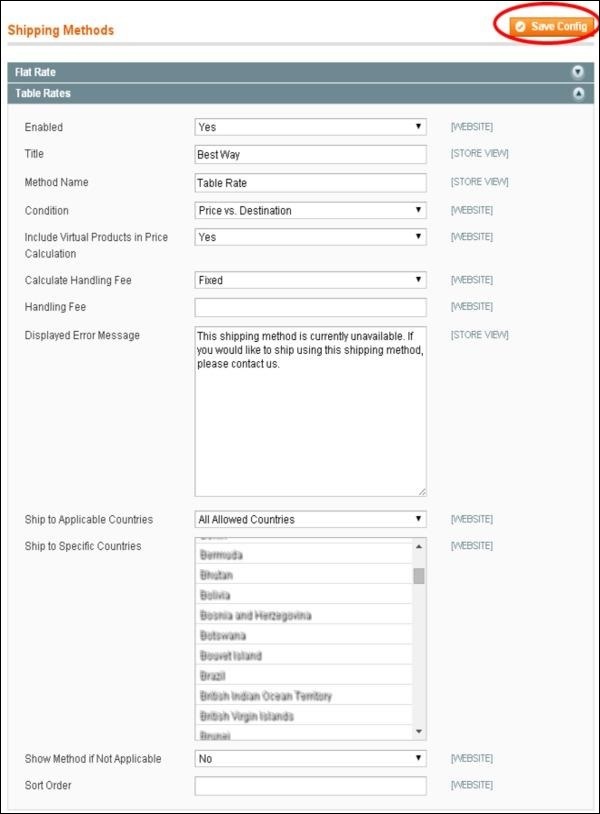
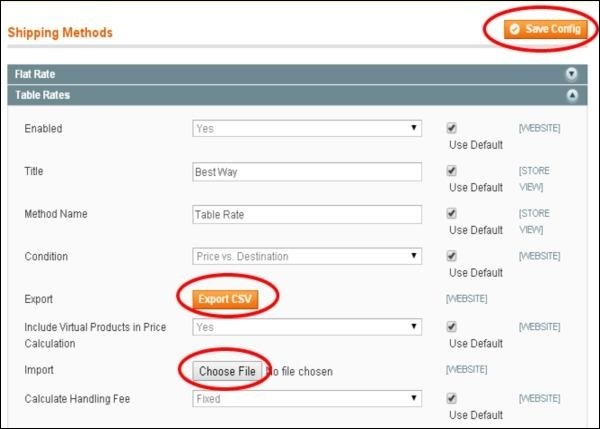
Step (4) − Then expand the Table Rates section, enable the table rates by selecting Yes from the dropdown menu for the Enabled field. It will turn off flat rate shipping and allow you to specify different rates based on chosen criteria.
Step (5) − Fill all the required fields as shown in the following screen and click on the Save Config button. It will save your current configuration into Magento.
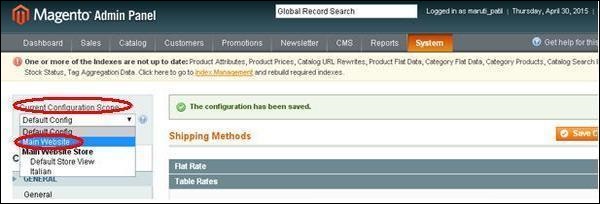
Step (6) − If you want to modify the fields of table rates section, go to Current Configuration Scope menu in the top left corner and select the Main Website option from dropdown menu.
Step (7) − Magento allows to view or generate and download different reports. Magento has integrated tools for CSV files generation. You can create the shipping rates in a spreadsheet and then import them to your website. Click on the Export CSV button to download the template. Upload the file into Magento by clicking on the Choose File button next to the import option.
Step (8) − After uploading the file, click on the Save Config button on the top right corner to save the table rates.
Step (9) − The CSV structure will look like as shown in the following screen −

The first column specifies the country where the shipping rate will apply, second column specifies the region/state within that country, third column specifies the postal code of the region/state, fourth and fifth columns determine the price for the shipping rate in which these values represent whatever currency you have set for your webstore.
After completing this process, save the file and import it into your Magento webstore by using the Import button.